Sign up & authentication
This page covers how you get into Inkome — creating an account, and the three ways you can sign in. It’s the first thing you’ll do, so it’s worth knowing your options up front.
Signing up
Sign-up is open to everyone. On the registration page you’ll see the heading Create your account — fill in your details and Inkome emails you a confirmation link.
The form asks for:
| Field | Notes |
|---|---|
| First Name | Your given name |
| Last Name | Your family name |
| Email address | Where access and notifications are sent |
| Password | Min 8 characters, 1 uppercase, 1 lowercase, 1 number |
| Confirm Password | Must match the password above |
| Organization Name | The company or workspace you’re creating — see Create your organization |
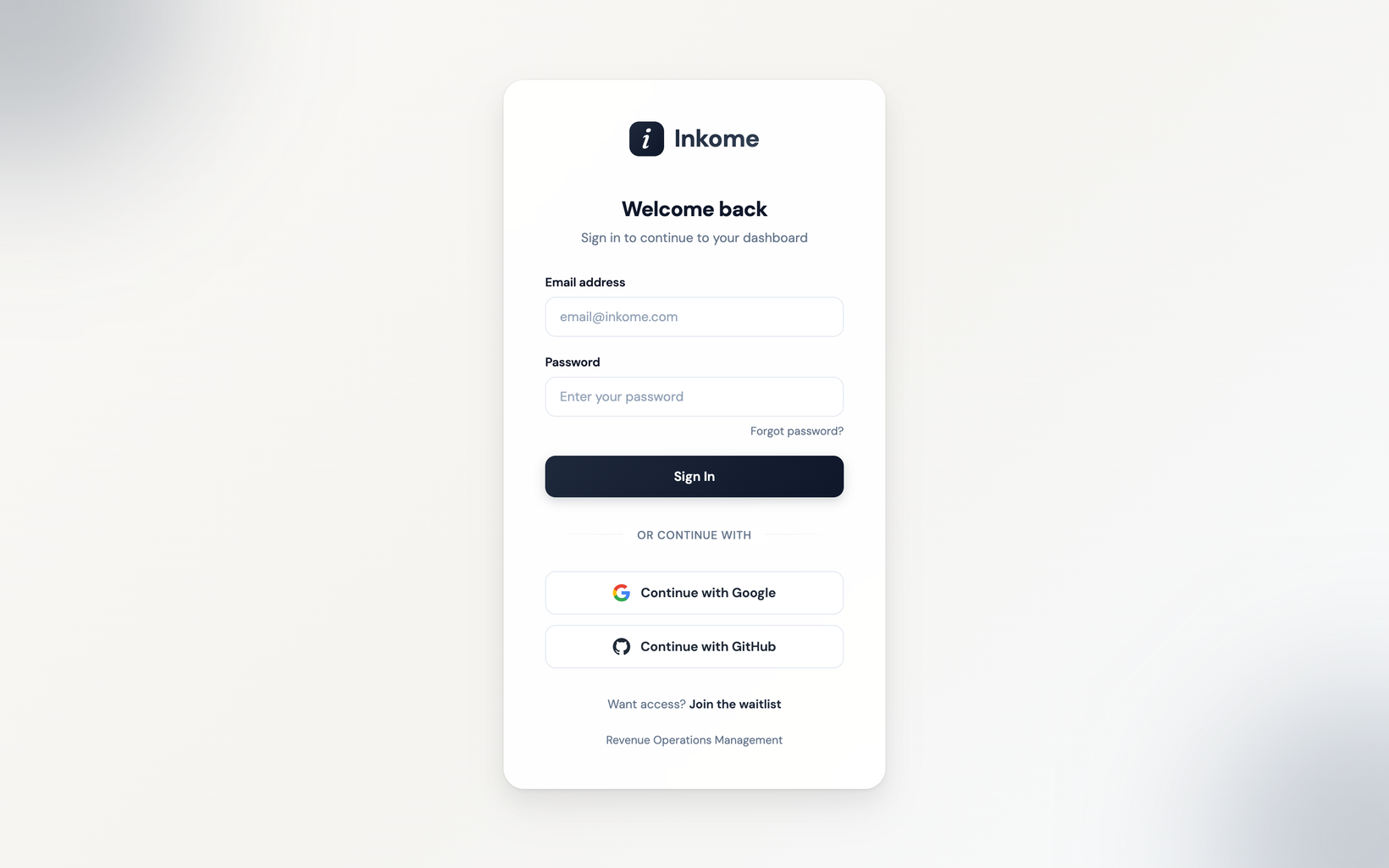
Confirming your email address activates the account. Until you follow that link, signing in is refused — the Sign In page says so and offers to send a fresh link. Once confirmed, you sign in from the Sign In page (Welcome back).
Three ways to sign in
Inkome supports three sign-in methods. You can use whichever you prefer.
| Method | Button | Notes |
|---|---|---|
| Email & password | Sign In | Uses the email and password from your account |
| Continue with Google | One-click sign-in with your Google account | |
| GitHub | Continue with GitHub | One-click sign-in with your GitHub account |
Email & password
Enter your Email address and Password on the Welcome back page and choose Sign In. If you’ve forgotten your password, use the Forgot password? link on that page to reset it.
Continue with Google or GitHub
Choosing Continue with Google or Continue with GitHub hands you off to that provider to authorize Inkome, then brings you back signed in. The same buttons appear on both the sign-in and registration pages, so you can use a social account to register or to log in later. A Google or GitHub account arrives already confirmed, so there is no email step. With Google, you’ll be asked to pick which account to use.
Where to go next
Once you’re in for the first time, Inkome guides you straight into setup:
Prev: Key concepts: organizations, spaces, the triangle Next: Create your organization Up: User guide index