Exporting data (Excel / CSV)
Your data is yours, and Inkome makes it easy to take it with you — for a board pack, an accountant, or your own spreadsheet model. There are two ways to get data out: a quick export of whatever table you’re looking at, and a full export of everything in the organization.
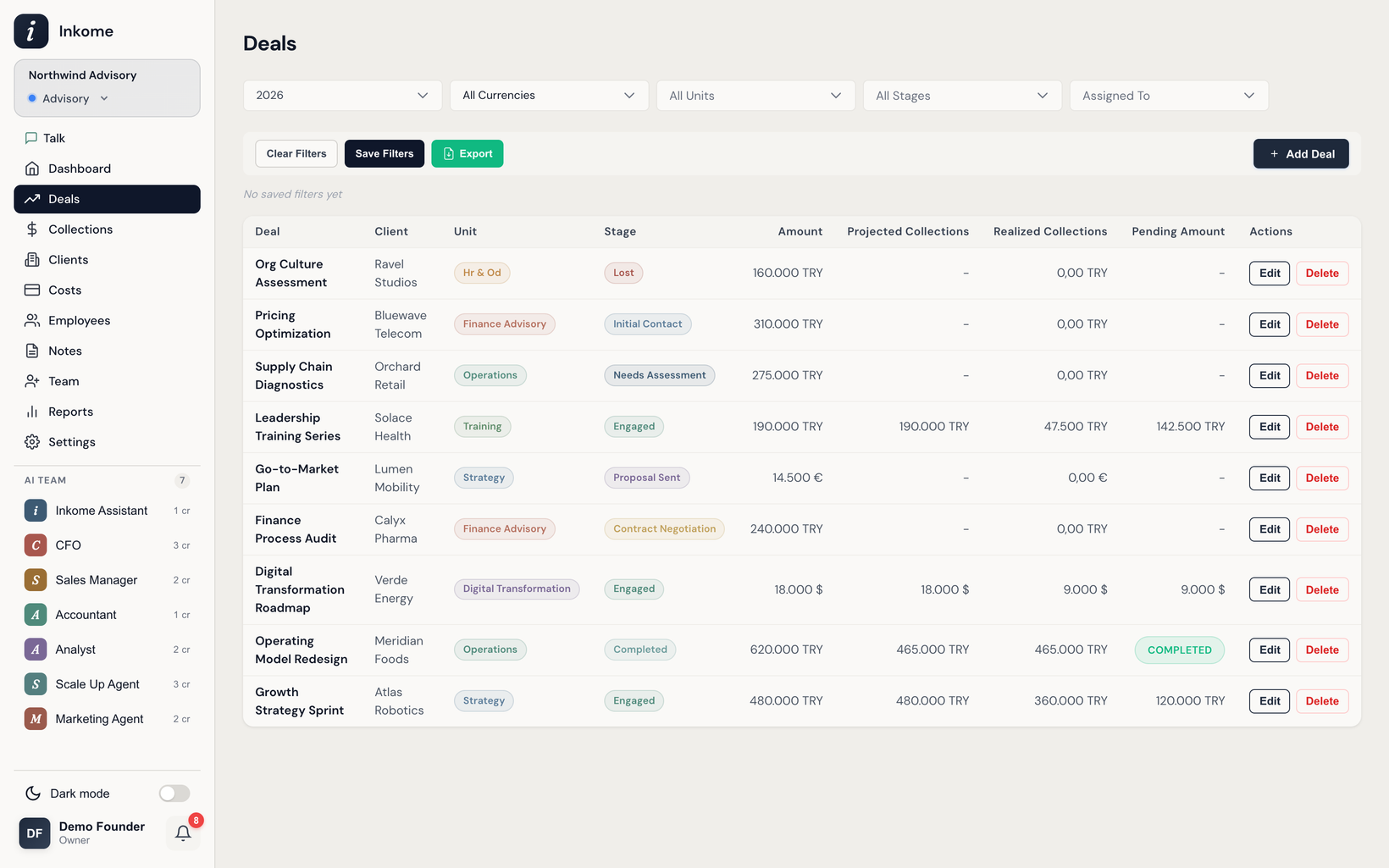
Export the table you’re looking at
Most data pages — Deals, Collections, Clients, Costs, and Employees — have an Export button in the table toolbar. It exports the rows exactly as displayed, which means:
- Your filters are respected. What you’ve filtered down to is what you get — no more, no less.
- Your search and sort order come with it. The workbook opens in the order you left the table in.
- The chosen display currency is preserved. Amounts come out in the currency the table is showing.
- The download is an Excel (
.xlsx) file, with a sheet matching the page (for example a Deals sheet).
If you’re viewing all spaces at once, the export includes a Space column so you can tell records apart.
On the Clients export, columns that are genuinely empty stay empty rather than becoming zero — a client with nothing revenue-active has no collection rate and owes nothing yet, and writing 0 there would drag down any average you take over the column.
Export everything in the organization
For a complete backup or handoff, Inkome can export the whole organization at once. This pulls together all spaces and produces a workbook with a sheet per data type:
| Sheet | Contents |
|---|---|
| Deals | All deals / opportunities. |
| Collections | All collections. |
| Costs | All cost entries. |
| Cost Payments | The payment history behind those costs. |
| Employees | Staff records. |
| Compensation History | Compensation changes over time. |
The full export is also available in JSON and CSV formats for feeding into other tools.
A note on currency
Because Inkome handles multiple currencies, an export carries the amounts as they’re shown — converted to your selected display currency where the table converts them. If you need original-currency figures, set the display currency before exporting, or use the full organization export, which preserves each record’s own currency.
Prev: Reports Next: Filters & saved filter groups Up: User guide index