Integrations: Stripe, Shopify, iyzico
Most of your money already lands somewhere — Stripe, a Shopify store, an iyzico account. Re-typing all of that into Inkome by hand is a waste of an evening. Integrations pull your real payments and orders in as collections, so your numbers reflect what actually happened.
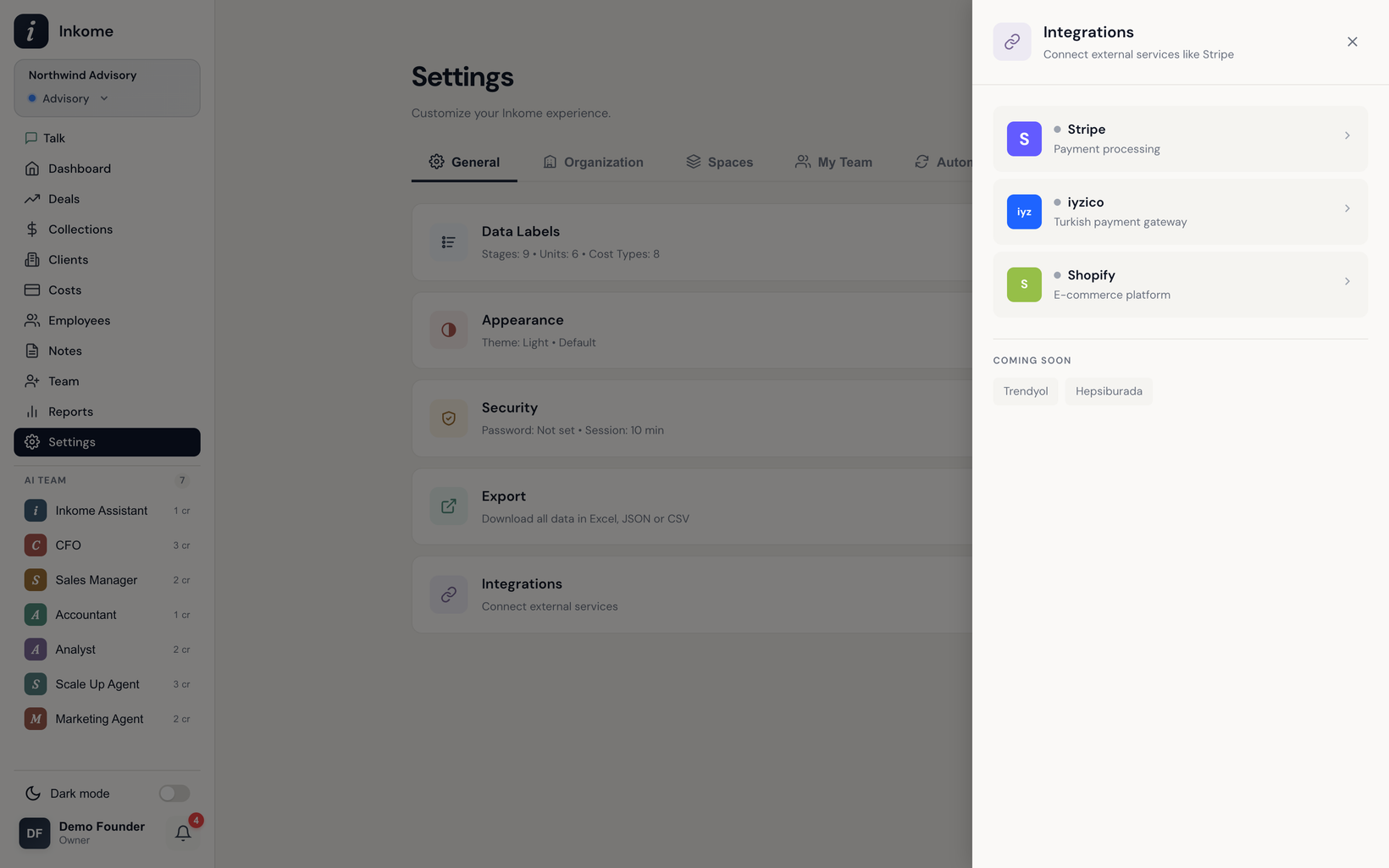
What’s available
Open Integrations under the General settings tab. You’ll see a list of connectors, each with a status dot showing whether it’s connected:
| Connector | What it brings in | How you connect |
|---|---|---|
| Stripe | Payments (charges) | OAuth — you authorize Inkome from your Stripe account |
| Shopify | Orders from your store | OAuth app install — enter your store domain, then approve |
| iyzico | Payment transactions | API Key + Secret Key from your iyzico merchant panel |
A Coming Soon section lists connectors on the way — currently Trendyol and Hepsiburada.
Who can connect
Integrations belong to the organization, not to a single space, and connecting or disconnecting one is restricted to owners and admins. Once connected, an integration is available to import into any space you choose.
How connecting works
Click a connector to open its detail view, then connect:
- Stripe — choose Connect Stripe and you’re redirected to Stripe to authorize. You can connect in test mode or live mode.
- Shopify — enter your store domain (e.g.
my-store.myshopify.com; the.myshopify.comis added for you if you leave it off), then approve the app install in Shopify. - iyzico — paste your API Key and Secret Key, use Test Connection to confirm they work, then Connect. iyzico has separate Sandbox and Production modes, and you can keep both connected at once.
Your credentials and access tokens are stored encrypted, and each connection is isolated to your organization.
Importing your money
Once connected, you import on demand — Inkome doesn’t silently sync without you. The Shopify and iyzico importers run as a short wizard:
- Configure — pick a date range, the target space, an optional deal to link to, and (for Shopify) a fee rate. Then preview.
- Preview — Inkome fetches your orders or transactions and shows them grouped by day, week, or month, with gross, fees, net, counts, and refunds. You can map individual products to deals and deselect ones you don’t want. Anything already imported is flagged.
- Import — Inkome writes the records into collections. If the same orders were already imported into a different space, it blocks the import; importing again into the same space simply updates the existing records.
This means you can re-run an import safely — you won’t end up with doubled-up revenue.
Disconnecting
Each connector’s detail view has a disconnect option (owners and admins only). Disconnecting stops future imports; the collections you already imported stay where they are.
Prev: Theme (light / dark) Next: Billing & plans Up: User guide index