Filters & saved filter groups
Once you’ve got real data flowing in, you rarely want to see all of it at once — you want this quarter’s deals, or just one client’s collections. Filters narrow any data table down to what you care about right now, and saved filter groups let you keep the views you reach for again and again.
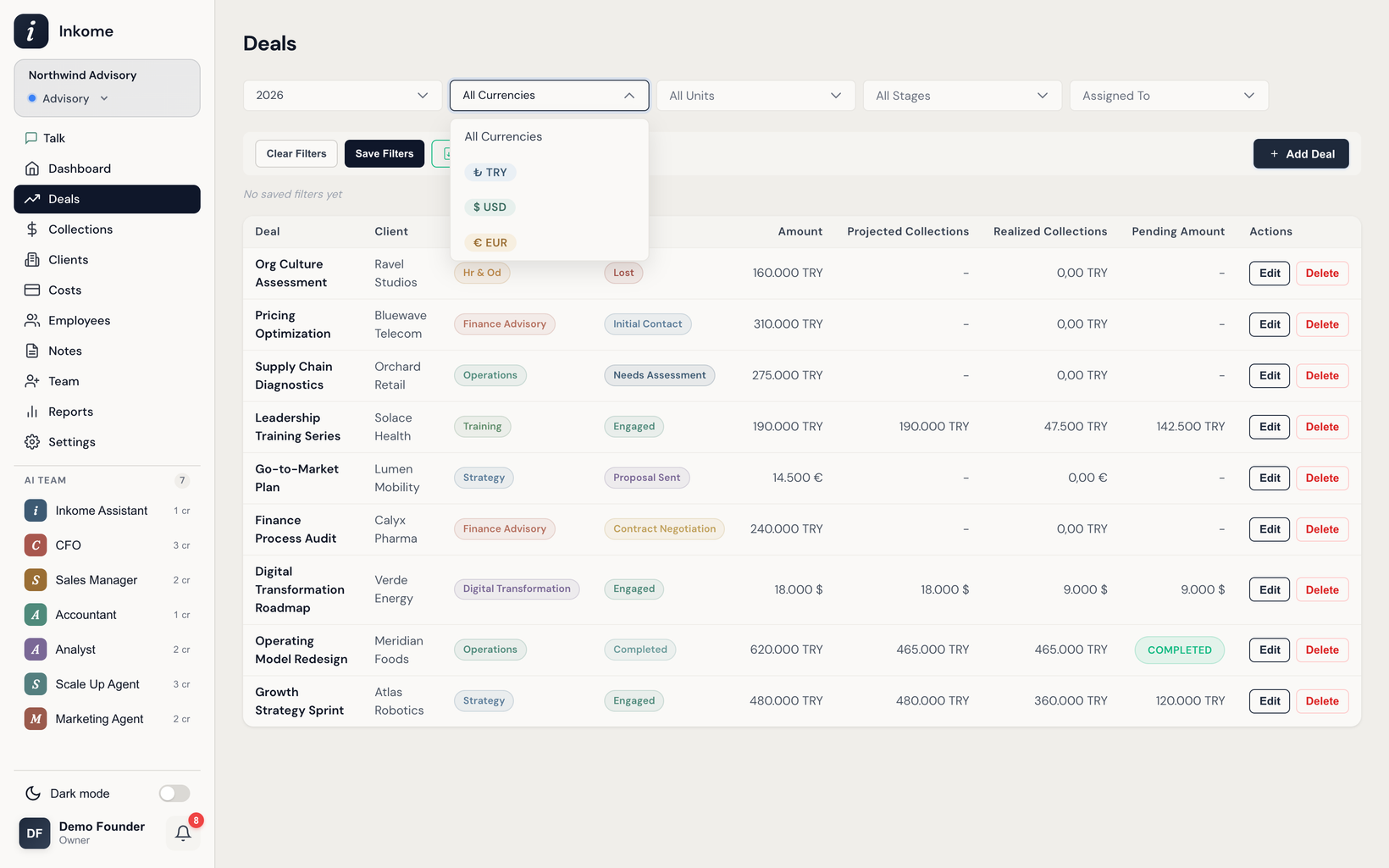
Filters on each page
Every data page has its own filter bar, tuned to that page. The filters available are:
| Page | Filters |
|---|---|
| Deals | Unit, Stage, Currency, Year, Assigned To |
| Collections | Date range (start / end), Currency, Status, Unit, Deal, Customer (or Platform), Assigned To |
| Clients | Year, Currency, Unit, Stage, Assigned To, Rate band, Activity |
| Employees | Year, Currency, Unit, Status |
| Costs | Year, Deal, Cost type, Frequency, Currency |
A few things worth knowing:
- Some filters are multi-select. Units, stages, statuses, and Assigned-To let you tick several values at once.
- Filters default to the current year where a year filter exists, so you land on what’s relevant. Switch to All Years to see everything.
- The filters adapt to your business type. On Collections, a services or SaaS space filters by Customer, while a product space filters by Platform instead — the same dropdown, reshaped by dynamic terminology.
- Your filters flow into exports. Exporting a table gives you exactly the rows your filters left showing.
- Clients filters recompute rather than hide. Client rows are totalled up from deals, so filtering to a stage rebuilds each client’s figures over just those deals instead of hiding rows and leaving the money columns describing deals you excluded.
The Space filter in All Spaces
When you’re viewing All Spaces, every list already shows which space a row belongs to — and now you can narrow by it. Deals, Collections, Clients, Costs and Employees each get a multi-select Spaces picker so you can compare two streams without leaving the combined view.
The picker only appears in All Spaces — inside a single space it would be a one-option dropdown whose only power is to hide the rows you came for. Switching back to a single space clears any selection rather than leaving it quietly narrowing your list. It stores space IDs, not names, so renaming a space doesn’t break a saved filter and two spaces sharing a name stay distinct.
Saved filter groups
When you find yourself setting the same filters over and over, save them as a group and apply them in one click later.
- Save the current view. With your filters set, choose Save Filters. You can Save as new with a name, or update an existing group.
- Apply with one click. Saved groups appear as chips on the filter bar — click one to apply that whole combination at once.
- Set a default. Mark a group as the Default and it applies automatically when you open that page, so your most-used view is always waiting for you.
- Reorder them. Drag the chips to put your favorites first.
Each page — Deals, Collections, Clients, Employees, Costs — keeps its own separate set of groups. On Clients, a saved group also stores how the table was sorted, because restoring the filters while leaving the sort behind only reproduces half of how you were looking at your clients.
Where a saved group lives
A saved group belongs to one of two scopes, and the scopes never mix:
| You saved it in | It belongs to | Where it shows up |
|---|---|---|
| A specific space | That space | Only in that space |
| All Spaces | The whole organization | Only in All Spaces |
All Spaces used to refuse to save a filter at all and send you off to pick a space first — which was backwards, since watching several streams together is exactly where a saved view earns its keep. It now keeps its own groups and its own default, without touching any space’s.
Keeping the scopes apart is deliberate: an organization-wide group may reference stages that don’t exist in the space you happen to open, and a single space’s group would be meaningless spread across all of them.
Prev: Exporting data (Excel / CSV) Next: The AI assistant Up: User guide index