Collection plans (planned revenue)
A collection plan is your forecast of when the money from a deal will land — month by month, before any of it actually arrives. It turns a single deal value into a schedule you can plan cash flow against, and later compare to what really came in. This page covers building a plan and turning it into real collections.
What a plan is for
A deal might be worth €60,000, but that doesn’t mean €60,000 hits your account on day one. A collection plan lets you say “€10,000 a month for six months.” That schedule then feeds the dashboard’s planned-revenue widgets and gives you something to measure actual collections against. The label tracks your business type — Collection Plan for services, Sales Plan for products, Revenue Plan for SaaS.
Building a plan
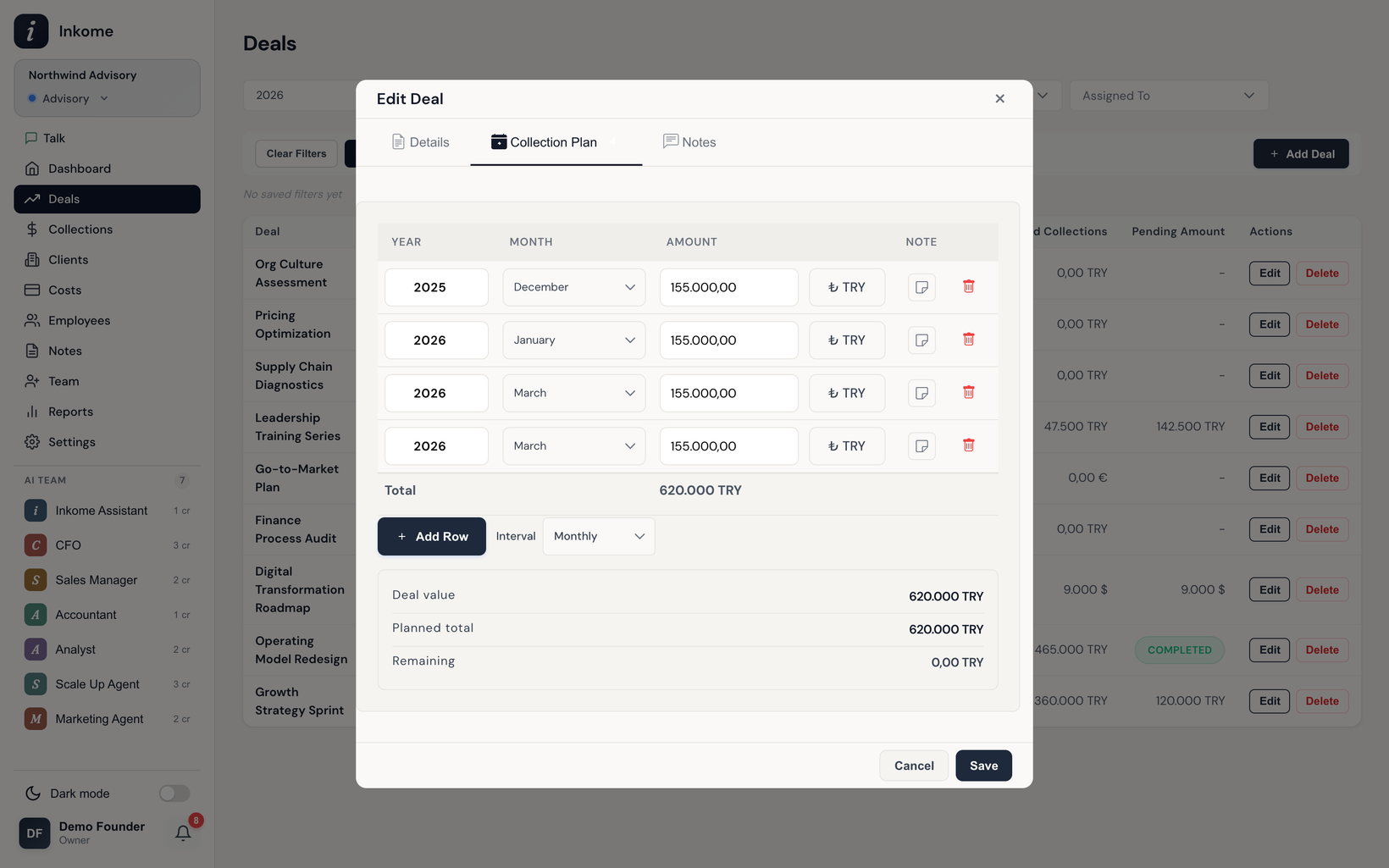
The plan lives on the second tab of the deal form (see Creating & editing a deal). Each row is one expected payment:
| Column | Notes |
|---|---|
| Year | Required on any row that has an amount. |
| Month | Required on any row that has an amount. |
| Amount | The expected amount, in the deal’s currency. |
| Note | Optional free text per row. |
Add rows one at a time. When you add a row, Inkome auto-advances to the next period and copies the previous amount, so a repeating schedule is fast to build. An interval selector lets each new row step by monthly, quarterly, or yearly. The plan rows always use the deal’s currency; change the deal currency and the rows follow.
The total check
As you type, a running total and a summary show the deal value, the planned total, and the remaining (deal value minus planned). For most business types the planned total can’t exceed the deal value — Inkome flags it in red and blocks the save if it does.
SaaS is the exception. Because a SaaS plan’s amount is MRR (monthly recurring revenue), its revenue plan legitimately adds up to far more than the amount across many months. So Inkome skips the over-total check for SaaS plans.
Turning a plan into collections
A plan is a forecast, not a payment — but you don’t have to retype it. When recording a collection, you can:
- Link the collection to a specific plan row from the plan picker, or
- Use Copy from Collection Plan to pull plan rows in as new collection records in one go.
Each copied row becomes its own collection you can then mark Paid as the money arrives. That’s the loop: plan it, collect it, compare it on the dashboard.
Both routes offer the same deals — the ones sitting on a stage you allow collections against (Collection stages, Revenue Active by default). The Copy picker used to list every deal including lost and on-hold ones, whose plans were never going to be collected. See Custom labels & terminology.
When a plan counts as expected revenue
Typing a plan doesn’t automatically make it a forecast on the dashboard. The Planned card and the two planned-revenue charts count a plan only when its deal is on a collectible stage category, and drop plans sitting on an excluded stage. A three-year plan sketched onto a lead stays a probability until the deal moves — which is what keeps signed work and wishful thinking out of the same total.
Prev: Recording a collection Next: Multi-currency collections Up: User guide index