Members & roles
Most businesses aren’t a one-person show. The moment a second person touches your numbers, you need to decide who can see what and who can change what. Inkome handles this with three roles — owner, admin, and member — set at the organization level, plus a read-only viewer role for people who should see but not touch.
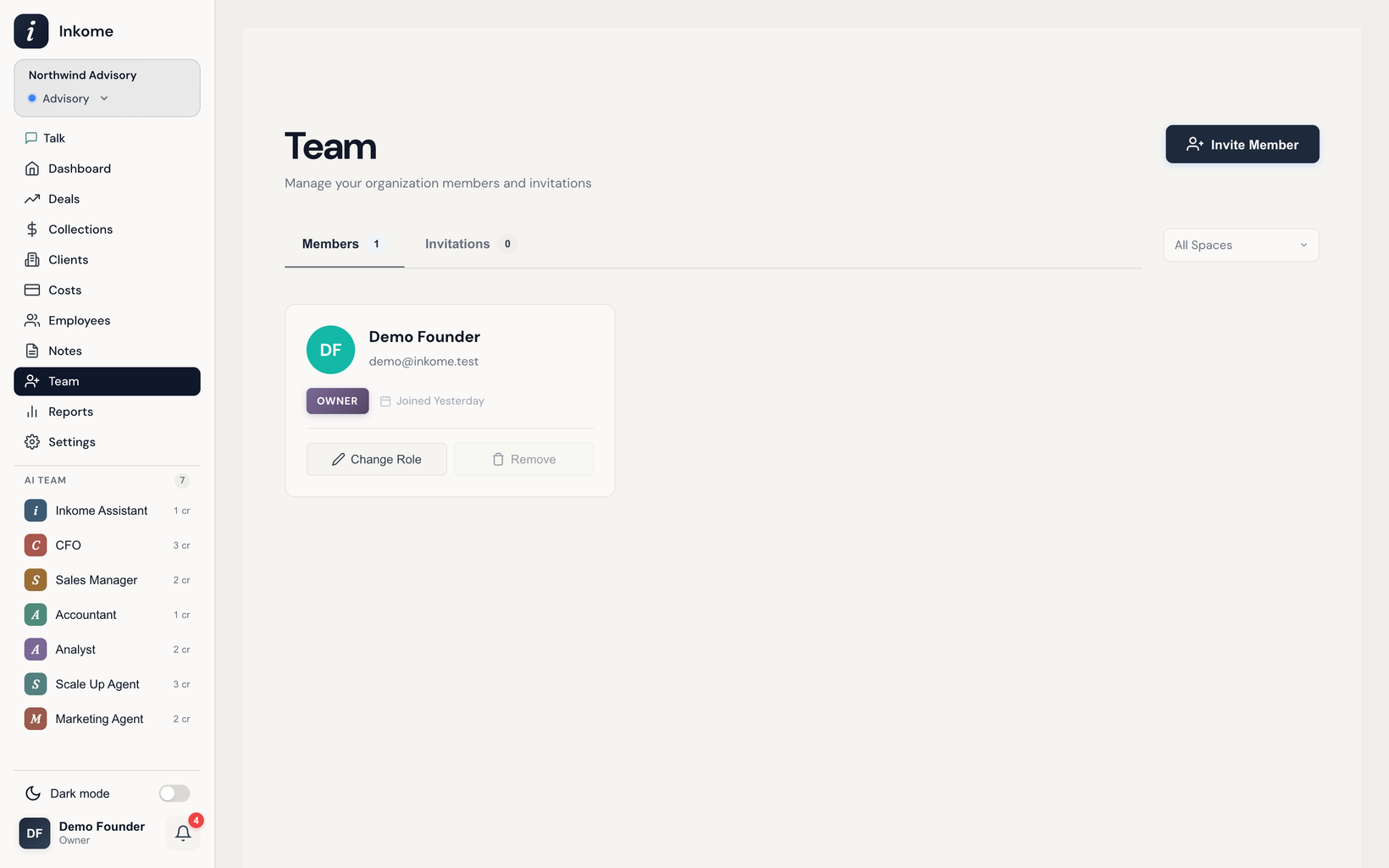
Where roles live
Your role is set on the organization, not on a space. One person has one role per organization, and that role decides which pages they see, which records they can edit, and whether they can manage the team. Members and viewers can additionally be limited to specific spaces (owners and admins always see all spaces).
You manage members from the team page: each person shows as a card with their name, email, role badge, and join date. Owners and admins get Change Role and Remove buttons on every other member’s card.
The four roles
| Role | Manage org | Manage team | Manage spaces | View all data | Edit data |
|---|---|---|---|---|---|
| Owner | Yes — name, billing | Yes | Yes | All spaces | Any record |
| Admin | No (owner only) | Yes | Yes | All spaces | Any record |
| Viewer | No | No | No | Assigned spaces (read-only) | None |
| Member | No | No | No | Only records assigned to them | Only their own records |
The practical differences:
- Owner — full control. Owners can rename the organization, manage billing & plans, and assign the owner role to someone else. Every organization must always have at least one owner.
- Admin — runs the team and the data day to day, but can’t touch organization-level settings (name, billing) or change another owner’s role. Admins can invite, remove, and re-role members, and create or edit spaces.
- Viewer — sees everything in the spaces they’re given access to, but read-only. Good for a stakeholder or accountant who needs the picture without editing it. The Costs page is read-only; Employees and Settings are hidden.
- Member — the most limited. Members only see deals and collections assigned to them, can’t create new records, and land on the deals page (no dashboard). Costs, Employees, the team page, and Settings are all hidden.
What each role sees
| Page | Owner | Admin | Viewer | Member |
|---|---|---|---|---|
| Dashboard | Yes | Yes | Yes | Hidden |
| Deals | All | All | All | Assigned only |
| Collections | All | All | All | Assigned only |
| Costs | Yes | Yes | Read-only | Hidden |
| Employees | Yes | Yes | Hidden | Hidden |
| Team | Yes | Yes | Read-only list | Hidden |
| Settings | Yes | Yes | Hidden | Hidden |
Changing a role
Open a member’s card and choose Change Role. Pick the new role; if you set them to Member or Viewer, you also pick which spaces they can access (owners and admins automatically get all spaces, so there’s no space picker for those).
A few guardrails Inkome enforces:
- Only an owner can assign the owner role, or change another owner’s role.
- You can’t change your own role.
- You can’t demote or remove the last owner — assign another owner first. The organization must always keep at least one.
Removing a member
Remove takes someone out of the organization entirely — their membership and space access are deleted. You can’t remove yourself, you can’t remove the last member, and you can’t remove the last owner or the last admin/owner. To hand off ownership before leaving, promote someone to owner first, then remove yourself isn’t possible — another owner removes you.
When you remove a member, their account isn’t deleted (they may belong to other organizations); only their place in this organization goes away.
Prev: Web search Next: Inviting your team Up: User guide index