Payment history & bulk payments
A recurring cost isn’t one payment — it’s many, one per period. Inkome turns a cost period into a full schedule of individual payments you can track, mark paid, and auto-settle. This page covers generating that schedule, the statuses involved, and the auto-pay shortcut.
Where payments come from
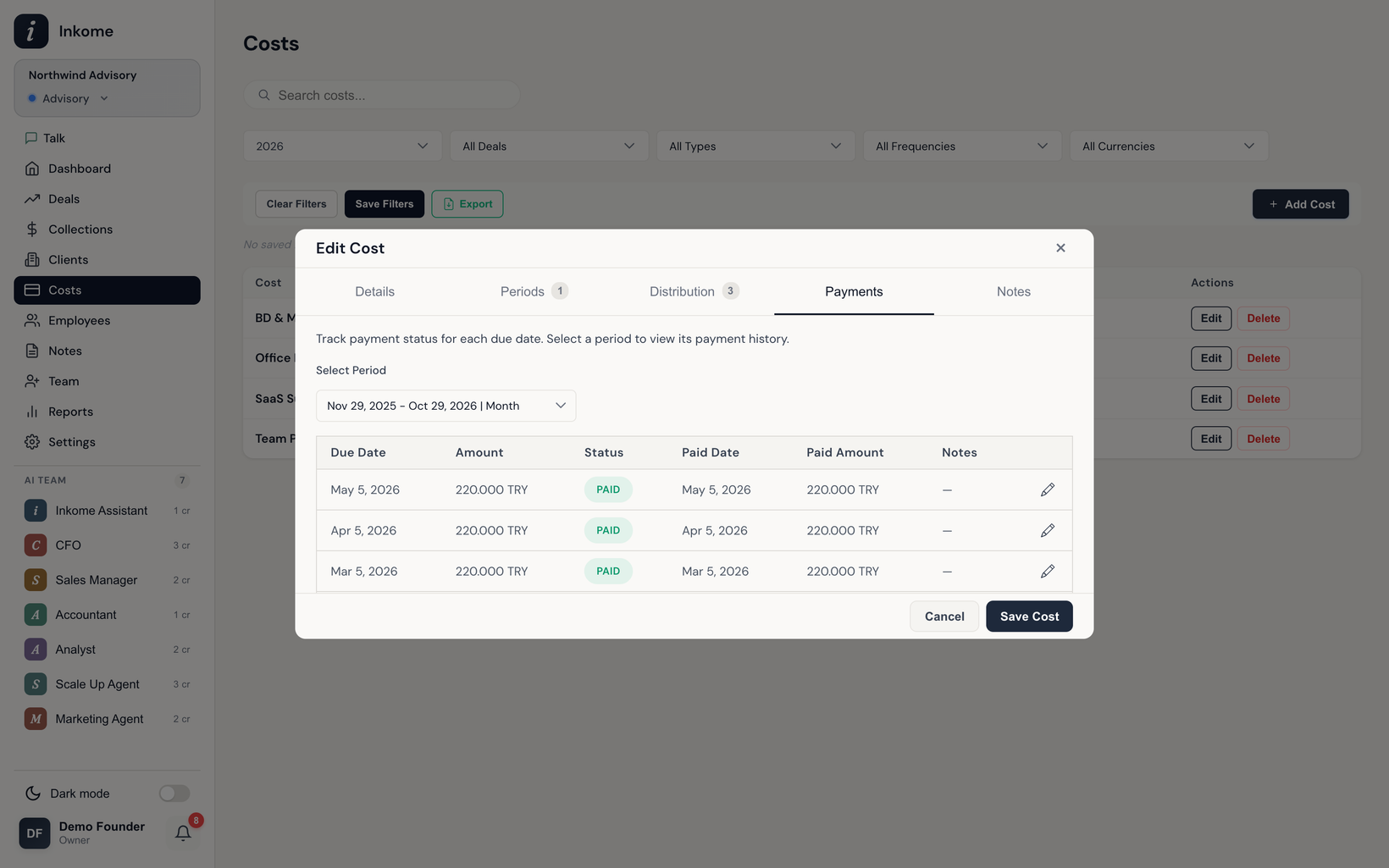
Each cost period defines a frequency, an amount, and a date range. From that, Inkome generates payment records — one for each due date from the period’s start through three months into the future. So a monthly rent that began in January produces a payment row for each month, plus the next few upcoming ones. You can regenerate a period’s schedule, which clears and rebuilds it from scratch.
This bulk generation is the “bulk payments” feature — you don’t enter twelve rent payments by hand; you define the period once and Inkome lays out the schedule.
Payment statuses
Each generated payment carries a status:
| Status | Means |
|---|---|
| Pending | Due date is today or in the future, not yet paid. |
| Overdue | Due date has passed and it isn’t paid. |
| Paid | Settled, with a paid date and paid amount. |
When you mark a payment Paid without specifying details, Inkome fills today’s date and the period’s amount for you. You can record a different paid amount and date if reality differed from the plan.
Auto-pay
A period can be set to auto-pay. When it is, generated payments whose due date is today or in the past are marked Paid automatically (with the due date as the paid date). This is for costs you know always go out — fixed subscriptions, standing rent — so you don’t have to tick each one. Periods without auto-pay leave past-due payments as Overdue until you mark them paid.
There’s also a maintenance action that sweeps Pending payments past their due date into Overdue, keeping the list accurate even between visits.
Upcoming payments & payroll
Beyond per-period history, Inkome rolls all of an organization’s due payments into an upcoming payments view — anything due in the next several days, across spaces, totaled by currency. If you’ve enabled it, this view also includes a payroll summary estimating staff costs due on your payroll day, prorated for anyone who joined or left mid-month. Payroll figures are visible only to owners and admins. See The dashboard and Settings.
Prev: Allocating costs to deals Next: The dashboard Up: User guide index