Allocating costs to deals
A cost on its own tells you what you spent. Allocating it to deals tells you what each deal cost you — and that’s what turns revenue into profit. This page covers how to split a cost across the deals it serves, by percentage or by fixed amount.
Why allocate
Say a freelancer costs you €4,000 a month and works across three client deals. By allocating that cost — 50% to one, 30% to another, 20% to the third — Inkome can show the true cost behind each deal and feed the dashboard’s Total Costs by Deal widget. Without allocation, a cost just sits in your overheads; with it, your per-deal profitability comes alive.
Two methods
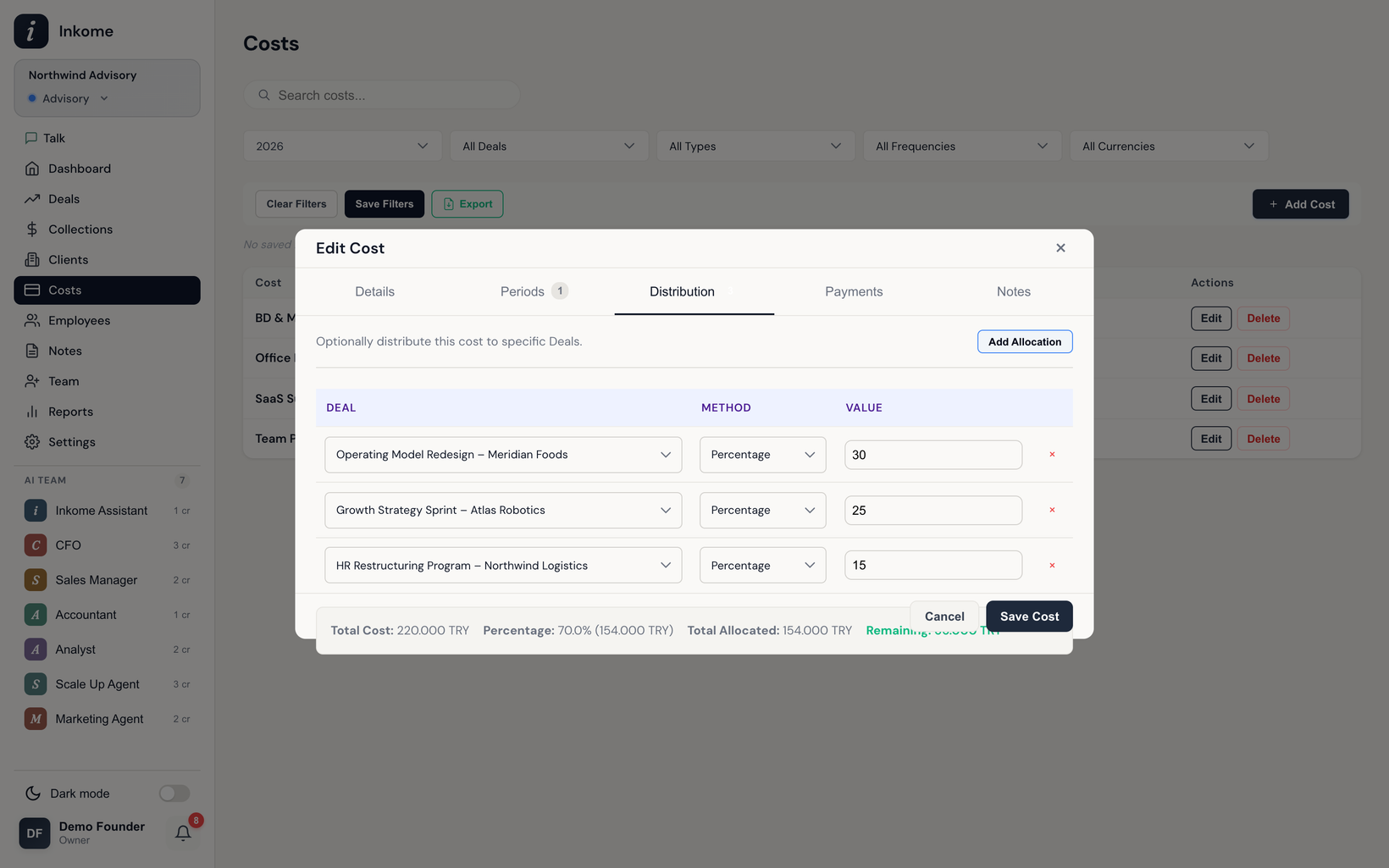
Each allocation row points at one deal and splits the cost one of two ways:
| Method | Label in app | What you enter |
|---|---|---|
| Percentage | Percentage | A share of the cost, e.g. 25 for 25%. |
| Fixed amount | Fixed Amount | A flat figure, e.g. 1000. |
You can mix methods on the same cost — some deals by percentage, others by a fixed amount.
Building allocations
Allocations live on a tab inside the cost form. Add a row, pick a deal (the picker is searchable and shows the client name), choose the method, and enter the value. A live summary shows:
- Total Cost — the active period’s amount.
- Percentage and Fixed Amount subtotals.
- Total Allocated and Remaining (cost minus allocated).
The validation rules
Inkome keeps allocations sane and blocks the save if they don’t add up:
- Percentages can’t exceed 100%.
- Total allocated can’t exceed the cost amount (percentage share + fixed amounts combined).
- A row needs both a deal and a value greater than zero to count.
When a rule is broken, the summary turns red with a message and the save button is disabled until you fix it. A Remaining of zero means the whole cost is accounted for; a positive remaining means part of the cost is still unallocated overhead.
Prev: Cost types Next: Payment history & bulk payments Up: User guide index