Business types — services, e-commerce, digital, SaaS
A consulting deal and an online sale don’t behave the same way, so they shouldn’t look the same in the app. The business type you pick for a space tells Inkome what kind of stream it is — and the whole interface reshapes itself to fit.
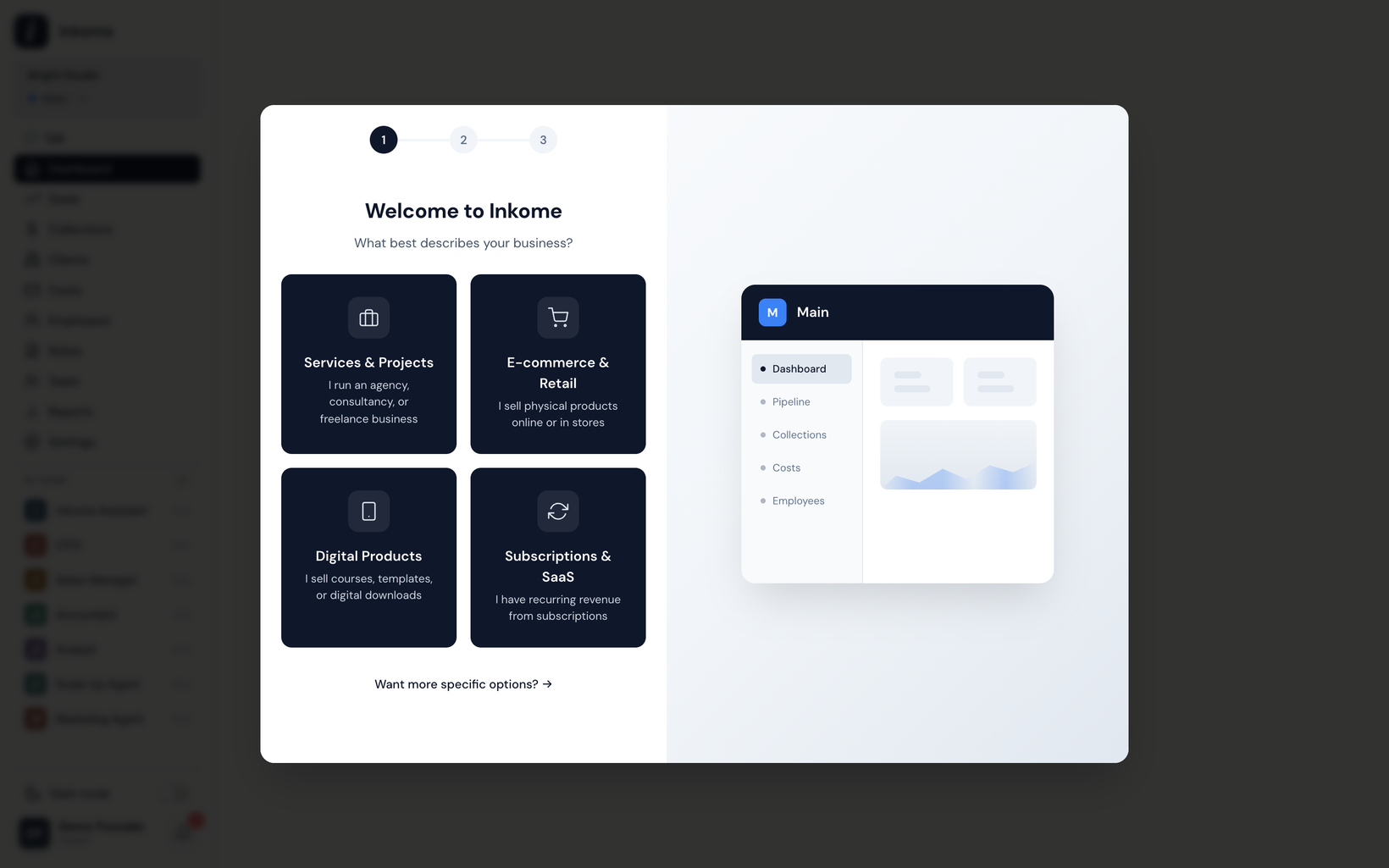
The four business types
You choose one of four types when you create a space. Each is built around a different way of making money.
| Type | Name in app | For | You said… |
|---|---|---|---|
| Services | Services & Projects | Consulting, freelance, agencies, contractors | “I run an agency, consultancy, or freelance business” |
| E-commerce | E-commerce & Retail | Trendyol, Amazon, Shopify, physical products | “I sell physical products online or in stores” |
| Digital | Digital Products | Apps, templates, courses, downloads | “I sell courses, templates, or digital downloads” |
| SaaS | Subscriptions & SaaS | Recurring revenue, memberships | “I have recurring revenue from subscriptions” |
You pick the type during the onboarding wizard, either directly or by drilling into a more specific industry.
How the type reshapes the whole app
The business type isn’t just a label on the space. It changes four things at once:
- The words you see. Labels across the interface switch to match the stream — Deals vs. Products vs. Plans, Collections vs. Sales vs. Revenue, and so on. See Dynamic terminology.
- The forms you fill in. Each type shows only the fields that make sense. A services deal asks for a Client Name and Close Date; an e-commerce product asks for a Platform, Unit Price, and Commission Rate; a SaaS plan asks for a Monthly Price.
- The default stages. Each type comes with a starter set of stages that fit its lifecycle — a sales pipeline for services, an inventory status for e-commerce, a subscription lifecycle for SaaS.
- The dashboard. The widgets change to surface what matters for that stream — pipeline and collections for services, commission analysis and top products for e-commerce, churn analysis for SaaS.
Term mapping per type
This is the core vocabulary each type uses for its two main records — the thing you sell and the money it brings in. (For the full label-by-label list, see the Business-type terminology matrix.)
| Concept | Services | E-commerce | Digital | SaaS |
|---|---|---|---|---|
| The thing you track | Deal | Product | Product | Plan |
| Money coming in | Collection | Sale | Sale | Invoice |
| The customer | Client | Customer | Customer | Account |
| Stage label | Stage | Status | Status | Status |
| The pipeline view | Pipeline | Catalog | Catalog | Plans |
| The value figure | Deal Value | Revenue | Revenue | MRR |
| The plan of expected income | Collection Plan | Sales Plan | Sales Plan | Revenue Plan |
A few notes from how each type behaves:
- Services is the only type that tracks a Close Date and uses a true sales Pipeline. Its stages run from Discovery through Closed Won / Closed Lost.
- E-commerce and Digital are product-based and look almost identical in vocabulary. The difference is in the details: e-commerce talks about a Platform and Shipping Costs; digital talks about a Store, Downloads, and a Payout Date. Neither tracks a close date — a product is “active” rather than “won”.
- SaaS is built around recurring revenue. Its value figure is MRR (monthly recurring revenue), and its stages run Trial → Active → Past Due → Churned.
Can you change a space’s type later?
Yes. You can change a space’s business type later by editing the space (Settings → Spaces → Edit). Because the type drives the labels and forms, switching it re-skins the whole space — your Deals become Products, your Collections become Sales, and so on — while the underlying records keep their values.
That said, if a stream genuinely becomes a different business — say a consultancy that spins up a separate line of courses — a new space is usually cleaner than reshaping an existing one, so each stream keeps its own pipeline, costs, and dashboard. See when to create a new space vs. reuse one.
Prev: Spaces: isolated revenue streams Next: Dynamic terminology Up: User guide index