Creating & editing a deal
Adding a deal is how new value enters your pipeline. The form is short on purpose — only the name is required — but it adapts to your business type so you only see fields that make sense for your stream. This page walks through every field and the tabs in the deal form.
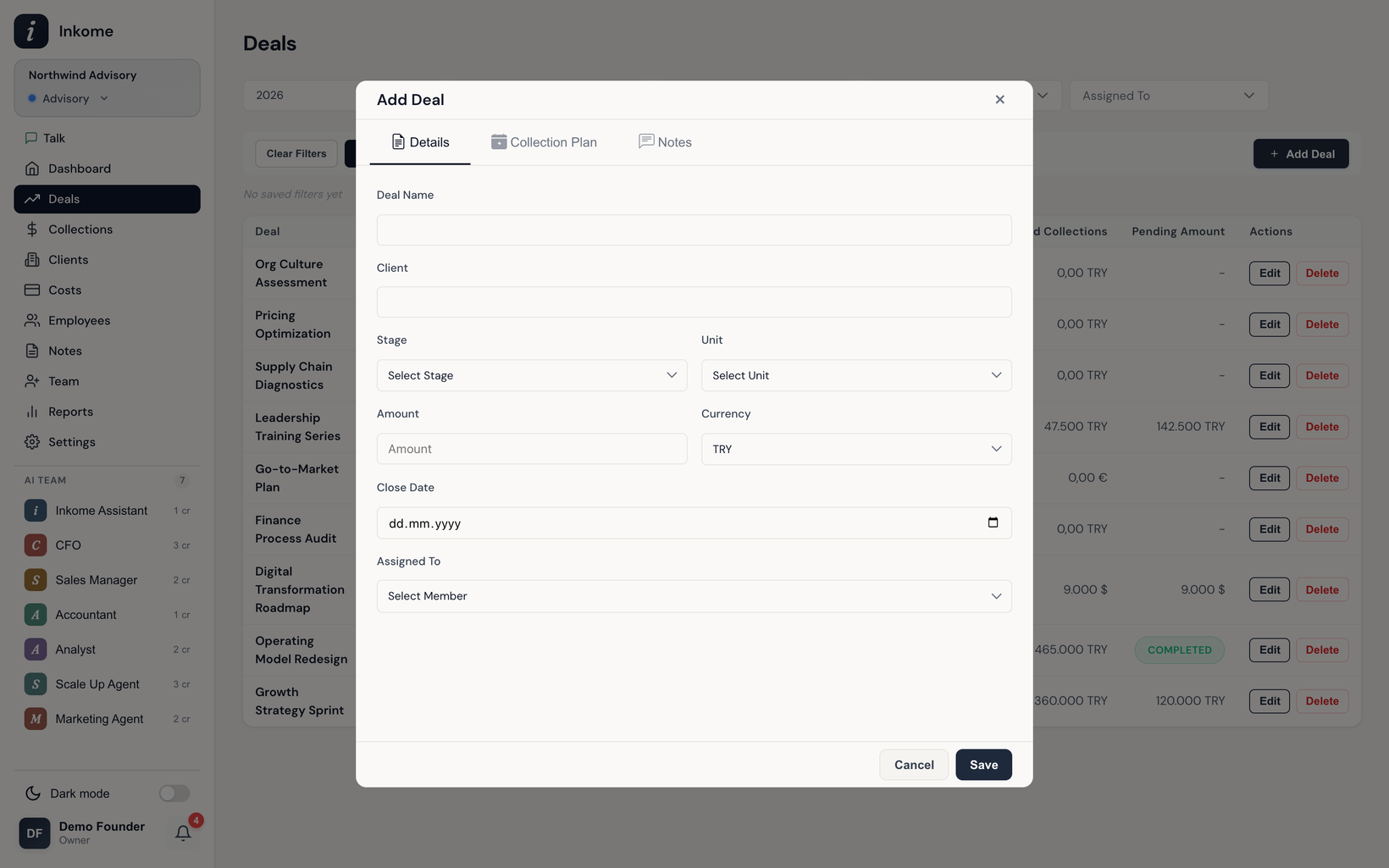
Opening the form
Click Add Deal to create one. The button’s label follows your business type — Add Product for e-commerce and digital, Add Plan for SaaS. To change an existing deal, open it and edit; the title switches to Edit Deal (or the type’s equivalent). Only owners and admins can create deals; members can edit the ones assigned to them.
The form has three tabs: Details (the deal itself), a collection-plan tab (see below), and a Notes tab. When creating a deal you can also jot an optional First Note (with a follow-up date) on the Notes tab; the full note timeline opens once the deal is saved. See Notes & follow-ups.
The Details fields
| Field | Required | Notes |
|---|---|---|
| Name | Yes | The only required field. Everything else can be filled in later. |
| Stage | No | Pick from your space’s stages. |
| Amount | No | Leave blank and it’s saved as 0. Accepts localized number formatting. |
| Currency | No | TRY, USD, or EUR. Defaults to the space’s default currency. |
| Unit | No | The team or department. See Units. |
| Assigned To | No | A member of your organization, searchable. |
Fields that change with business type
Some fields only appear for certain types — Inkome shows just the ones that fit your stream:
| Field | Services | E-commerce | Digital | SaaS |
|---|---|---|---|---|
| Client Name | Shown (Client Name) | Hidden | Hidden | Shown (Account) |
| Close Date | Shown (Close Date) | Hidden | Hidden | Hidden |
| Platform | Hidden | Shown (Platform, required) | Shown (Store, required) | Hidden |
| Amount label | Deal Value | Revenue / Unit Price | Revenue / Price | MRR / Monthly Price |
In services spaces, the Client Name field offers autocomplete from clients you’ve already entered, so you don’t retype the same name.
SaaS amounts are MRR. For a SaaS plan, the amount represents monthly recurring revenue, not a one-off total. That’s why a SaaS plan’s revenue plan can legitimately add up to more than the amount over time — see Collection plans.
The collection plan tab
The second tab lets you schedule expected income for this deal without leaving the form — a row per month/year with an amount. This is the deal’s collection plan. A few rules:
- Each row needs a year, a month, and an amount to be saved.
- For most business types, the plan’s total can’t exceed the deal amount — Inkome flags it if it does. (SaaS plans skip this check, since the amount is MRR.)
- A badge on the tab shows how many planned entries you’ve added.
You can build the plan when you first create the deal, or add it later by editing.
Editing and deleting
Editing reopens the same two-tab form with everything pre-filled. When you delete a deal that has collections or a collection plan attached, Inkome shows a warning listing exactly what will be removed — those records are deleted with the deal and can’t be recovered. A tip in the dialog suggests moving the deal to an inactive stage instead, to keep its history.
Prev: Deals & pipeline overview Next: Stages & categories Up: User guide index