Custom labels & terminology
Inkome already speaks your industry’s language out of the box — a services space says “Deal”, an e-commerce space says “Product”. But your business has its own words too: your own pipeline stages, your own departments, your own cost buckets. The Data Labels settings let you rename and reshape those so the app reads like your business, not a template.
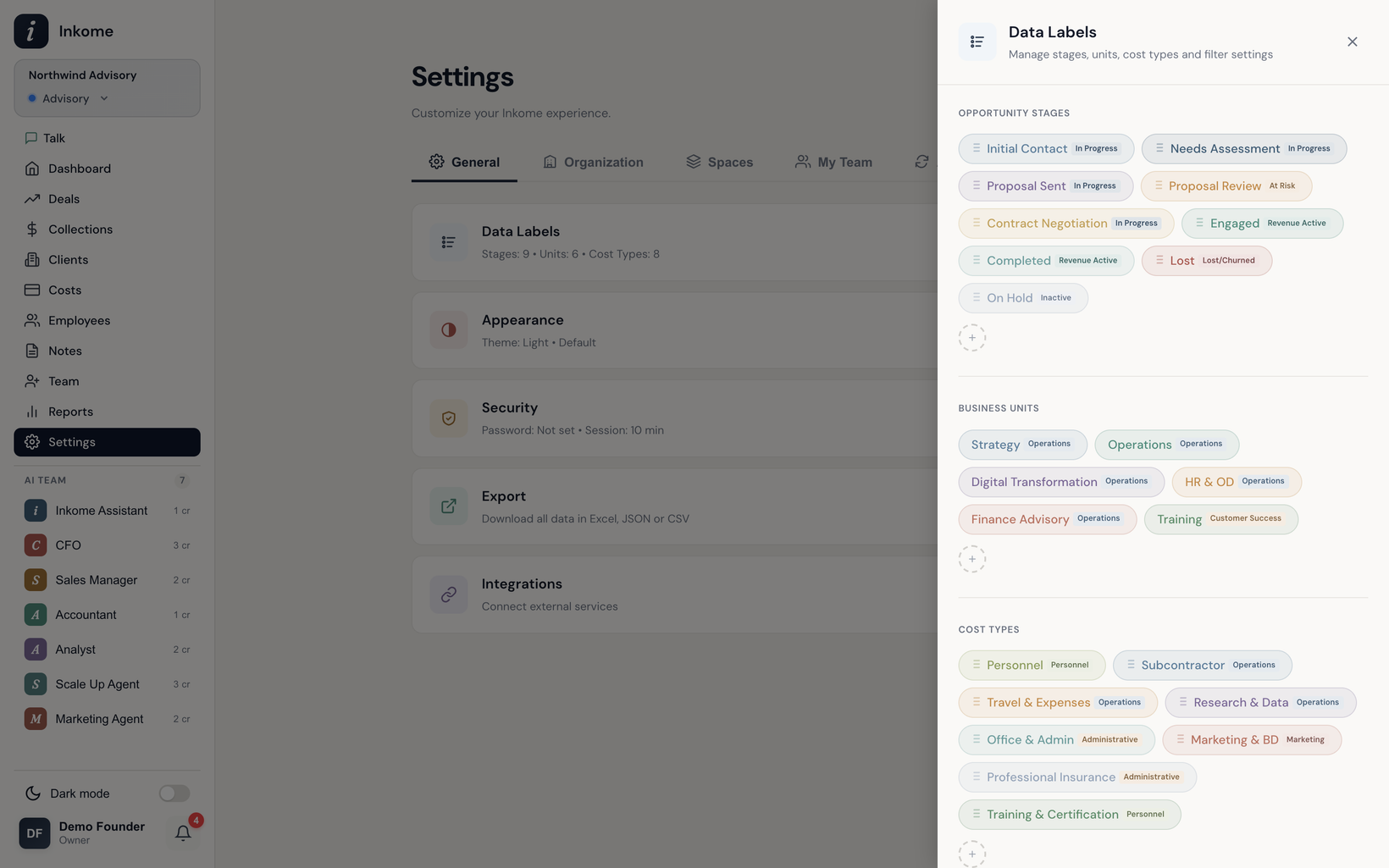
Two layers of terminology
There are two layers at work, and they’re different things:
- Business-type terminology — the big nouns (Deal vs Product vs Account, Project vs SKU). These come from the space’s business type and change automatically when you switch spaces. You don’t edit these directly; you pick them by choosing a business type. See Dynamic terminology.
- Your custom labels — the stages, units, and cost types you define. These sit on top of the business-type defaults and are entirely yours to add, rename, recolor, reorder, and remove.
What you can customize
Open Data Labels under the General settings tab. You’ll find three lists:
| Label type | What it is | Notes |
|---|---|---|
| Stages | The steps in your pipeline (e.g. Lead, Proposal, Won) | Each has a category (active, won, at risk, lost). Drag to reorder. |
| Units | Your departments or teams | Used to slice deals and the dashboard. |
| Cost types | Your cost categories | Group your costs for reporting. |
For each item you can change its name and color, and for stages and cost types you can drag to reorder. Use the add button on each list to create a new one, the edit (pencil) to rename or recolor, and the delete (×) to remove.
These labels are per space
Stages, units, and cost types belong to the space you’re in — they’re space-level settings. That’s deliberate: your consulting pipeline and your store’s pipeline shouldn’t share stages. Because of that, you can’t manage them in All Spaces mode; Inkome shows a note asking you to pick a specific space first.
Stages that count toward your numbers
Two stage settings shape your headline figures:
- Excluded stages — stages whose deals you don’t want counted in pipeline totals (for example, a “Lost” stage). The list is read in All Spaces too, so a combined view can’t come out higher than the spaces it summarizes.
- Collection stages — the stage categories whose deals are considered collectible. Revenue Active by default. Unlike the two lists above, this one belongs to the organization and applies to every space, which is why it’s written in categories rather than stage names — a name only means something inside its own space.
These let you tune what “pipeline” and “expected revenue” actually mean for your business, rather than accepting a one-size-fits-all definition.
Collection stages reaches further than it looks. One setting, read everywhere the question “can we collect against this deal?” comes up:
| Where | What it governs |
|---|---|
| The New Collection modal | Which deals you can record a payment against. |
| Copy from Collection Plan | Which deals’ plan rows the picker offers. |
| The dashboard’s Planned card | Which collection plans count as expected revenue. |
| Planned Collections by Year / by Unit | The same narrowing, applied to the two planned-revenue charts. |
A deal matches on its stage’s category, so the setting means the same thing in every space and in All Spaces. Organizations that previously picked individual stage names are translated to the matching categories automatically — nothing to migrate, but it’s worth opening the panel once to check the result is what you meant.
Deleting a label safely
When you delete a stage, unit, or cost type that’s in use, Inkome clears it off the records that referenced it rather than leaving them pointing at something that no longer exists. So a deleted stage doesn’t orphan your deals — they just lose that stage assignment.
Prev: Currency Next: Theme (light / dark) Up: User guide index